Basic Kit / Basic Kit 2: Your First AVR Demo
Use this page with AI
Set up with your favorite AI
 ChatGPT
  Claude
 Gemini & other AI
Copy the setup prompt into your AI. Work through each step together, from checking your kit to getting it running.
 Open Gemini
 Copy the prompt, then paste it into Gemini’s message box.
View prompt
Table of contents
If your Basic Kit 2 has just arrived, start here too. Its preinstalled AVR demo is shared with Basic Kit. Keep the kit assembled with its AVR MCU; you do not need to swap the processor.
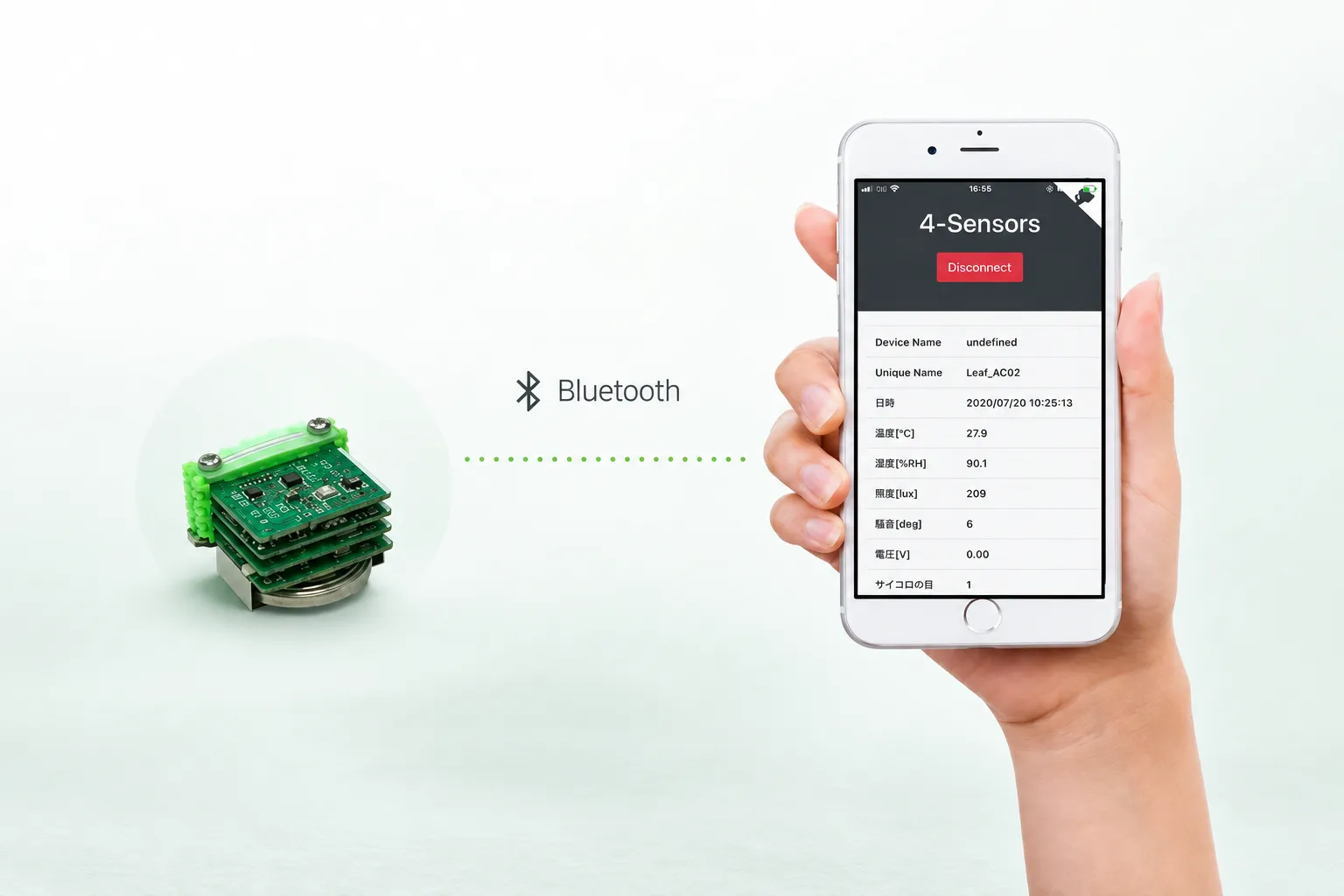
Use the program preinstalled on the AVR MCU to view temperature, humidity, illuminance and acceleration readings over BLE on a phone or computer. You do not need to upload a program or install development tools. The separate STM32 MCU included in Basic Kit 2 is not used for this first check.
What to prepare
- Basic Kit or Basic Kit 2 with its AVR MCU installed
- A CR2032 coin cell battery
- A phone or computer with Bluetooth LE and a supported browser
| Device | Browser to use |
|---|---|
| Android, macOS or Windows | Google Chrome with Web Bluetooth support |
| iPhone or iPad | Bluefy |
| Linux | Chrome requires additional setup; see the instructions below |
The Web Bluetooth implementation status describes browser support. OS and browser support alone do not guarantee that this demo works on every device. Start by checking the on-screen readings.
Setup
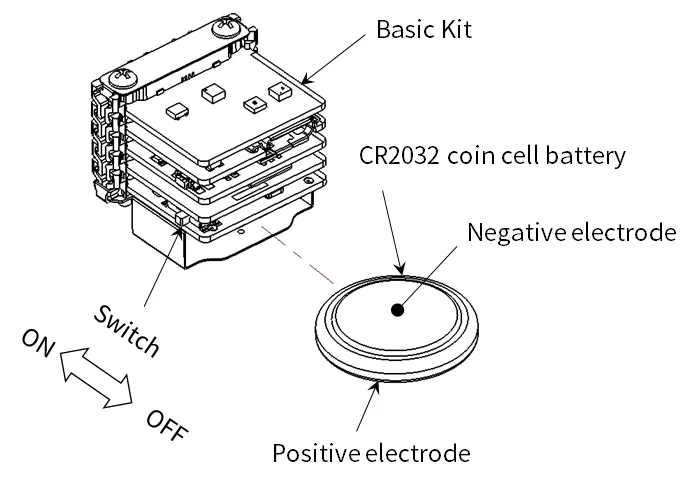
Insert the CR2032 coin cell in the orientation shown, then turn the power switch ON.
Usage
For Android, macOS or Windows
- Enable Bluetooth on your device and open Google Chrome.
- Open the Leafony Web Bluetooth app.
- Press Leafonyに接続する (Connect to Leafony). Select Leafony_AC02 in your device's pairing dialog and pair. Allow Bluetooth access if prompted.
- Check that temperature, humidity and other readings appear and the Leafony LED blinks.
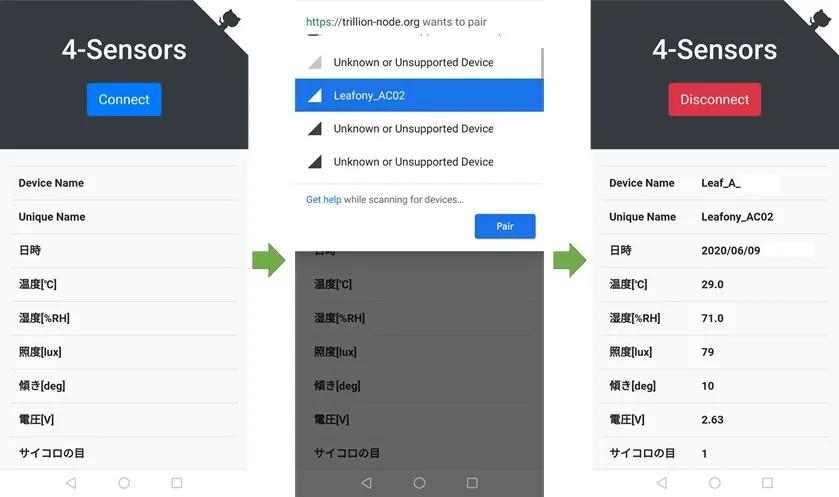
This is an example of the previous interface. In the current app, use Leafonyに接続する (Connect to Leafony).
For iPhone or iPad
- Install and open Bluefy.
- Enable Bluetooth and allow Bluefy to access it if prompted.
- Open
https://docs.leafony.com/WebBluetooth_for_Leafony_app/in Bluefy. - Press Leafonyに接続する (Connect to Leafony), select Leafony_AC02 in your device's pairing dialog, and pair. Check the readings on screen and the blinking LED.
On iPhone and iPad, first check the on-screen readings. CSV export in the current Bluefy version has not been rechecked for this demo.
On Linux
The official compatibility table lists Linux as partially implemented and unsupported. Check the Linux notes and required settings first, then follow the Chrome connection steps above. If setup is difficult, use another device from the table for the initial demo.
Check that it worked
When sensor readings appear in the web app and the Leafony LED blinks, your first check is complete. CSV export and changing the program are not needed for this check.
Open LEDの調整・データの保存 (LED settings and data export) to change the LED blink speed or export readings. Adjust the LED while connected, and use CSVを保存する (Save CSV) to export received readings. When finished, select 接続を切る (Disconnect).
Troubleshooting
If the device does not appear, see BLE connection checks. If you uploaded a different program, follow Restore the demo; restarting the MCU does not restore it.
Next steps
- Upload your first program with AVR (AP01): Set up Arduino IDE and check the blinking LED. The first Blink example needs no additional libraries.
- Understand the AVR demo: Web Bluetooth IoT example and source code
- When you need more memory or processing capacity (optional): Swap in the STM32 (AP03) included in Basic Kit 2 and try its preinstalled demo. You can also continue developing with AVR.
For a different MCU or development tool, use the development environment list. Uploading a program replaces the current demo, so check how to restore it before continuing.
Leaves included in the kit
For Basic Kit 2, see its included leaves. The AVR demo on this page is shared, but the kit contents differ.
Show the contents of the original Basic Kit
6 types of leaves. Select a photo or name for specifications and pin assignments.


Accessories and other included items

AZ62 Connector Cover

AZ66 Basic Kit Case
- CR2032 coin cell battery× 1
- M2×18 mm screw× 2
- Screwdriver× 1
Demo Video
Demo illustration