
AVR MCU: Arduino IDE Setup
Set up with your favorite AI
 ChatGPT
  Claude
 Gemini & other AI
Copy the setup prompt into your AI. Work through each step together, from checking your kit to getting it running.
 Open Gemini
 Copy the prompt, then paste it into Gemini’s message box.
View prompt
Use Arduino IDE to set up the development environment for the AP01 AVR MCU leaf (ATmega328P, 3.3 V, 8 MHz).
Uploading through AZ01C (USB Type-C) requires a manual reset. See the AZ01C upload instructions.
What to prepare
Section titled “What to prepare”- Basic Kit
- Data-capable USB cable
- PC (Windows, macOS or Linux)
Installing Arduino IDE
Section titled “Installing Arduino IDE”The Arduino IDE is a development environment for the Arduino, an open source hardware platform for electronics.
The development environment allows you to write programs, write programs to the Arduino board, and display the data coming from the board.
Leafony can be developed with the Arduino IDE.
Let’s download the Arduino IDE right away.
- From the Arduino website, go to
SOFTWAREand thenDOWNLOADSto get to the Arduino IDE download page. - Download the installer for your OS at the place where it says
Download the Arduino IDE. - Run the downloaded installer and follow the on-screen instructions to install the Arduino IDE.
Previous IDE releases
Section titled “Previous IDE releases”Older Arduino IDE installers are available from Previous IDE Releases.
Connecting to PC
Section titled “Connecting to PC”Connect to your PC with a USB cable.
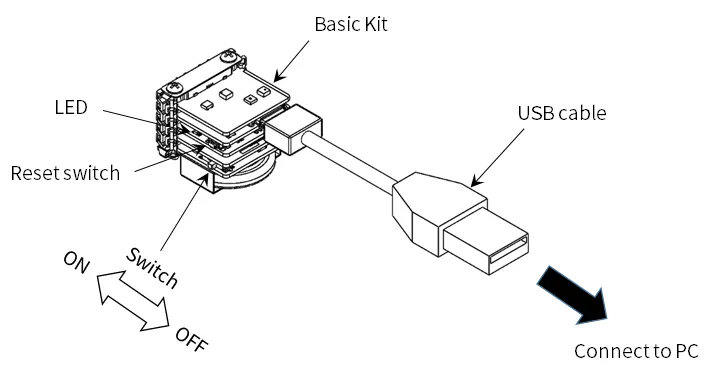
Configuration of the microcontroller board
Section titled “Configuration of the microcontroller board”To develop Leafony in the Arduino IDE, let’s follow the steps below to configure the IDE.
Arduino AVR Boardsis installed with the IDE. OpenTools → Board → Boards Managerto check its version. Use the version selector to install an earlier version.
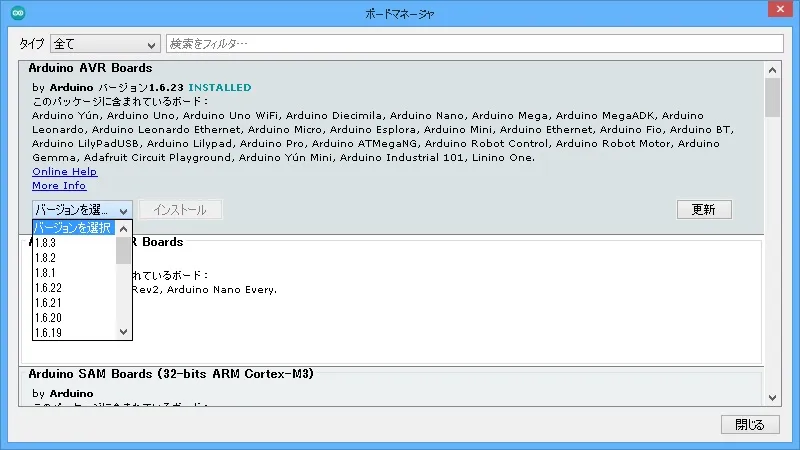
- Go to
Tools → Boardand selectArduino Pro or Pro MiniandATmega328P (3.3V, 8MHz)forProcessor.
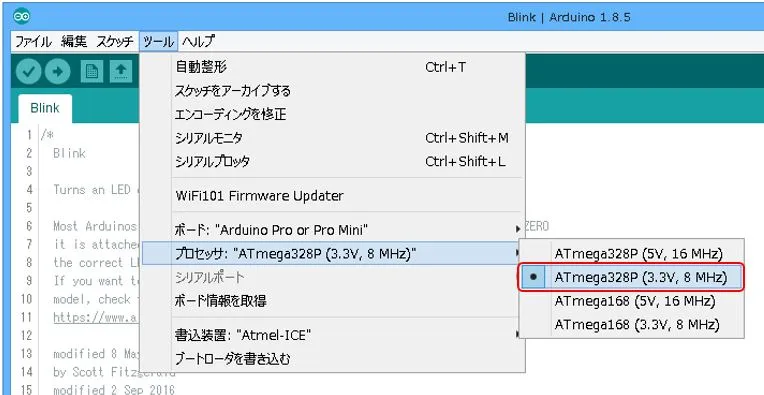
- Go to
Tools → Serial Portand select the serial port that Leafony is connected to. If no port is available, see the FAQ.
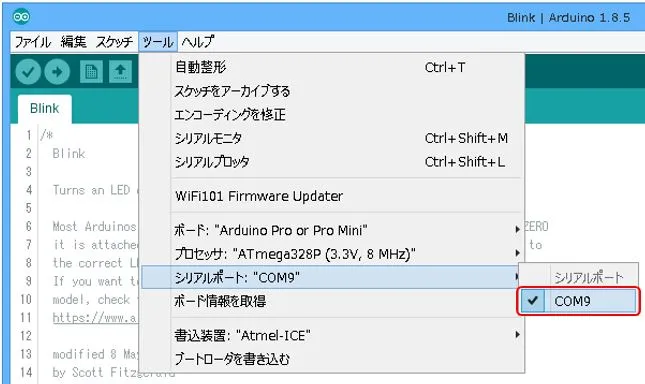
Checking the operation of the microcontroller board
Section titled “Checking the operation of the microcontroller board”Uploading replaces the program currently on the MCU. To run the kit demo again later, follow Restore the demo.
- In the Arduino IDE, click on
File → Sketch Examples → 01.Basics → Blinkto open the sample app. - The program is written to Leafony by pressing the
write to microcontrollerbutton. - If you can confirm that the LED on the AVR MCU leaf is blinking, you are done.
Specifying pins for a sketch
Section titled “Specifying pins for a sketch”The pin should be specified by its name.

Installing Libraries
Section titled “Installing Libraries”
See Libraries and board definitions for library sources, the correct ST7032 library for AI04 LCD, and ZIP installation. Add only what your example requires. The initial Blink example needs no additional libraries.
When in doubt.
Section titled “When in doubt.”If it doesn’t work, go to “If it doesn’t work…” to find a solution.