
STM32 MCU: Arduino IDE Setup
Set up with your favorite AI
 ChatGPT
  Claude
 Gemini & other AI
Copy the setup prompt into your AI. Work through each step together, from checking your kit to getting it running.
 Open Gemini
 Copy the prompt, then paste it into Gemini’s message box.
View prompt
What to prepare
Section titled “What to prepare”- STM32 MCU leaf (AP03 / STM32L452REI6)
- Basic Kit
- A Windows, macOS, or Linux computer
Installing STM32CubeProg
Section titled “Installing STM32CubeProg”Install STM32CubeProg to upload programs to the MCU.1 The linked download information is in Japanese.
Installing the Arduino IDE
Section titled “Installing the Arduino IDE”- Open the Arduino software download page.
- Under Downloads, select the installer for your operating system.
- Follow the installer instructions. See the installation walkthrough (Japanese) for more detail.
Previous IDE releases
Section titled “Previous IDE releases”Older versions are available from Previous IDE Releases.
Connect to PC
Section titled “Connect to PC”Connect Leafony to your computer using a USB cable.
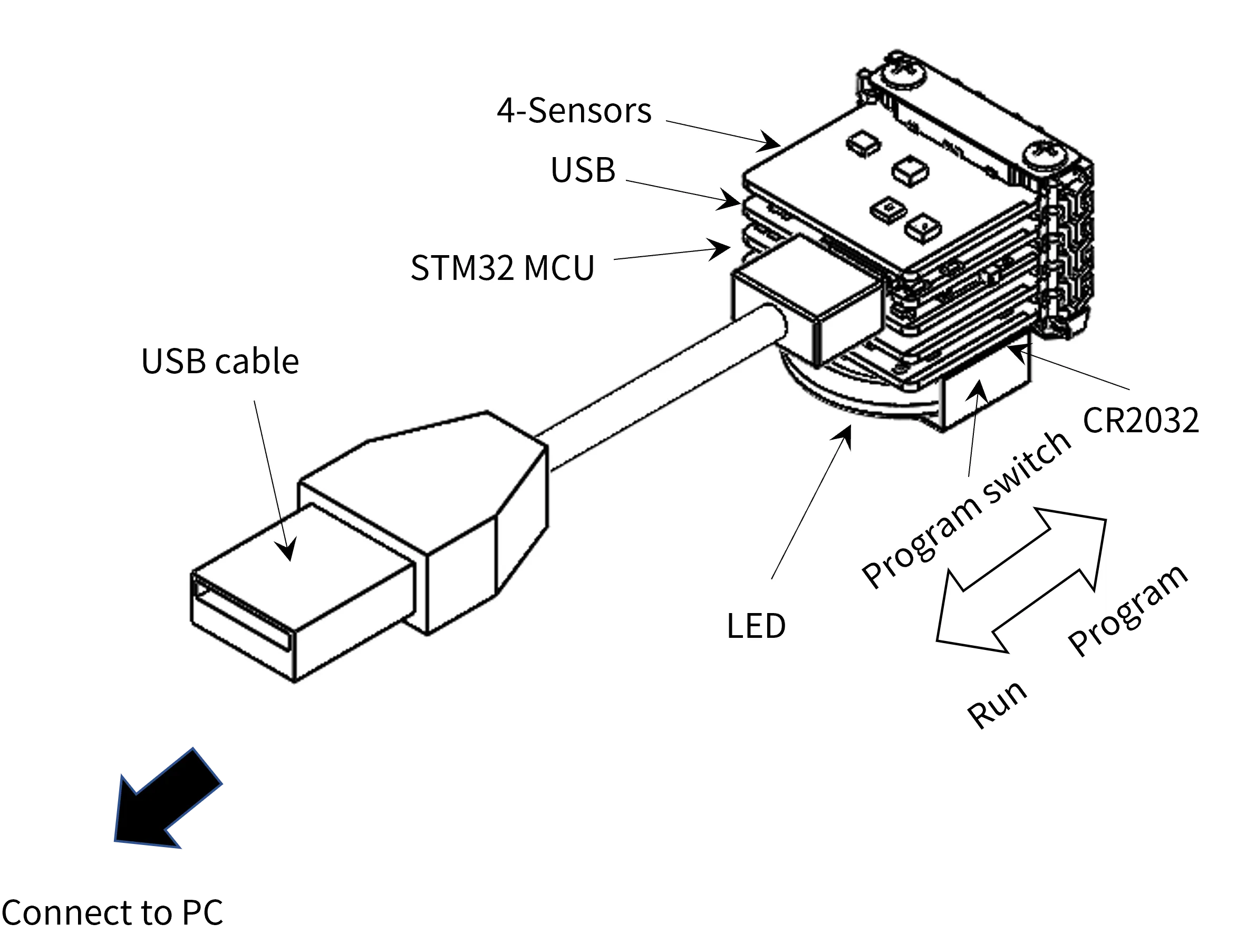
Configuration of the microcontroller board
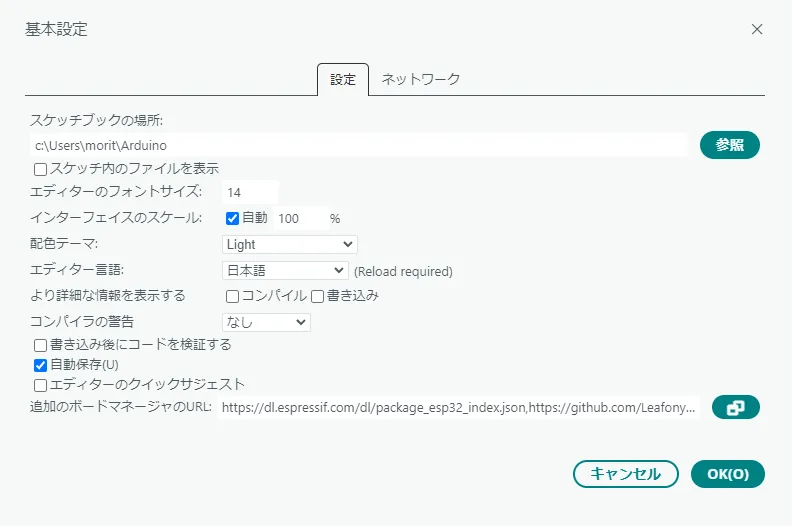
Section titled “Configuration of the microcontroller board”- Install the board package distributed by Leafony STM32. Open File → Preferences and add the following to Additional Boards Manager URLs.2
https://github.com/Leafony/BoardManagerFiles/raw/master/Leafony_STM32_v3/package_leafony_stm_index.json
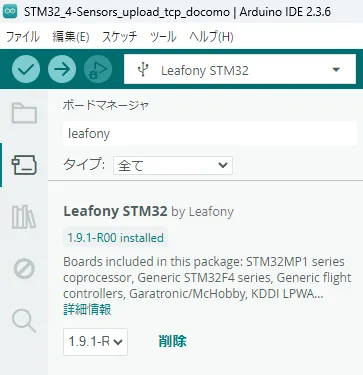
- Open Tools → Board → Boards Manager.
- Search for
Leafonyand install it. Installation may take several minutes. TheLeafony_STM32_v3package distributes version1.9.2-R00(checked September 15, 2026).
- Select Tools → Board → Leafony STM32.
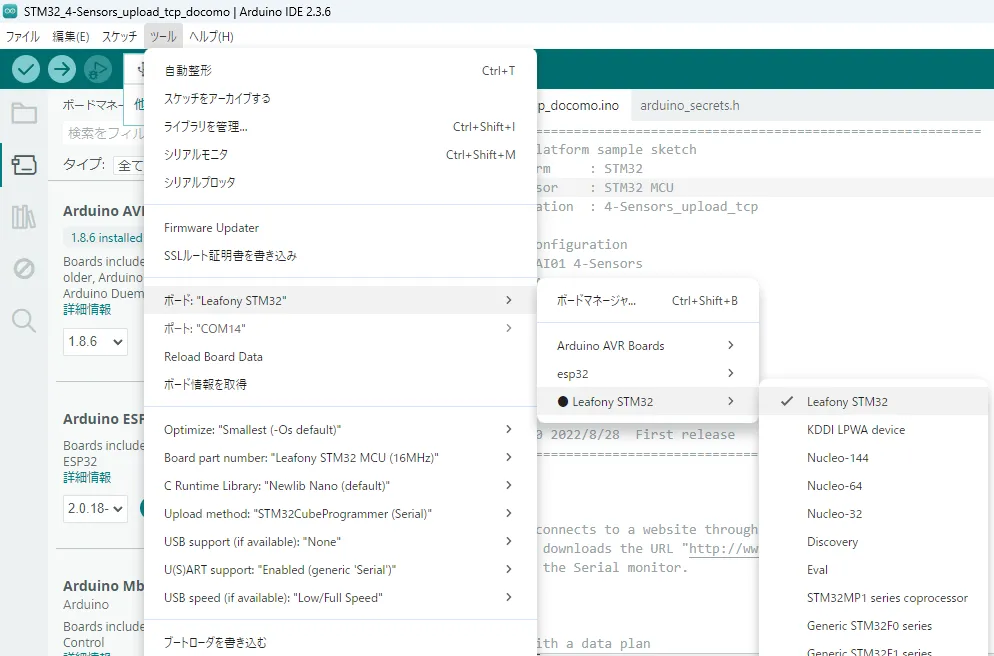
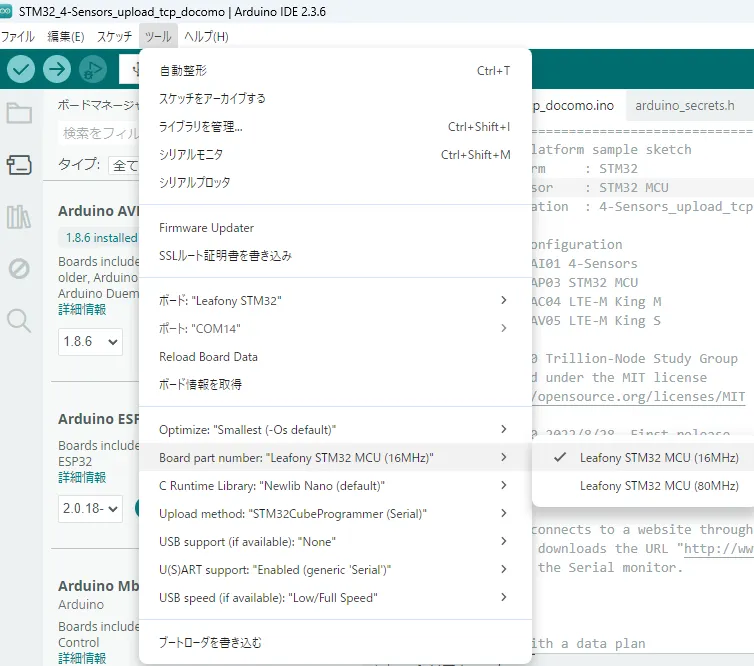
- Select Tools → Board part number → Leafony STM32 MCU. The default clock is 80 MHz; a 16 MHz board option is also provided for lower-power operation.
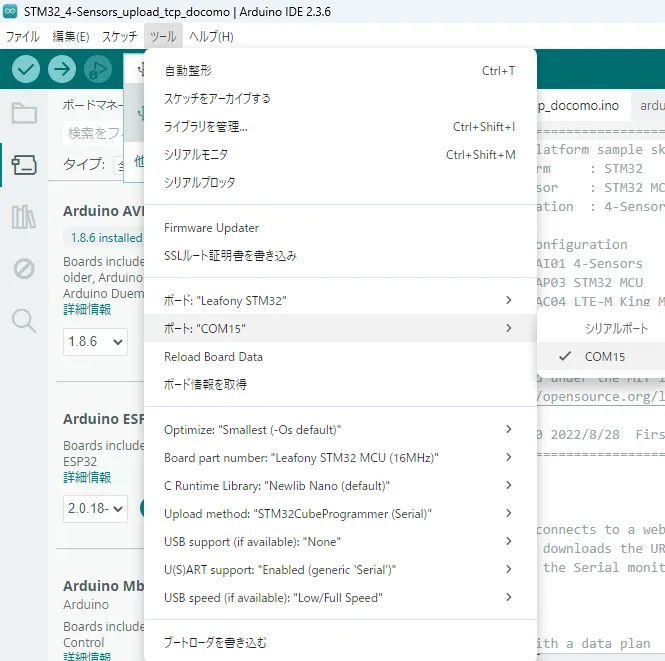
- Select the connected port under Tools → Serial Port. If no port is available, see Serial port not found.
Checking the operation of the microcontroller board
Section titled “Checking the operation of the microcontroller board”Uploading replaces the program currently on the MCU. To run the kit demo again later, follow Restore the demo.
- Set the STM32 MCU program switch to Program, then press the reset switch.

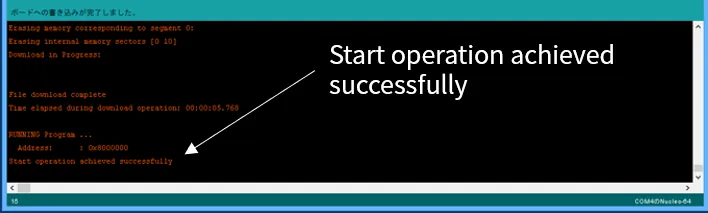
- Follow the temperature and humidity sensor example to upload the program. Uploading may take some time. A successful upload displays
Start operation achieved successfully. If that message is absent, the program will not run correctly.3
- When uploading finishes, return the program switch to Run. The LED turns off.
- Press the reset switch to start the program. Check that temperature and humidity values appear.
Specifying pins for a sketch
Section titled “Specifying pins for a sketch”With this Leafony board definition, specify pins by Name or Port.

Installing libraries
Section titled “Installing libraries”Install the libraries required by your example from Libraries and board definitions. Check the board package and Arduino Core version before selecting STM32RTC and STM32LowPower versions.
The timer-interrupt library MsTimer2.h is for AVR MCU and cannot be used with STM32 MCU. Use HardwareTimer as described below.
HardwareTimer
Section titled “HardwareTimer”See the HardwareTimer documentation for details. This is an example of initialization:
HardwareTimer *timer2 = new HardwareTimer (TIM2);
  timer2->setOverflow(LOOP_INTERVAL, MICROSEC_FORMAT);       // 125ms  timer2->attachInterrupt(intTimer);  timer2->resume();
Interrupt routine:
void intTimer(void){ bInterval = true; : :}When in doubt
Section titled “When in doubt”See the FAQ for troubleshooting.
Footnotes
Section titled “Footnotes”-
Historical testing recorded Windows 64-bit with versions 2.12.0, 2.6.0, and 2.4.0. Version 2.5.0 did not work in that testing. ↩
-
The Boards Manager URL changed when the package was updated from
Leafony_STM32toLeafony_STM32_v3. See the Leafony board package README. ↩ -
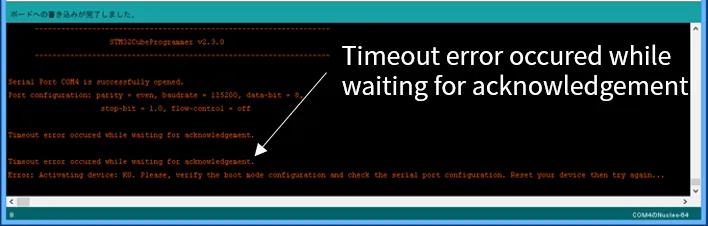
If uploading is attempted without setting the switch to Program, the IDE may still display
Writing to the board is complete, while the output below containsTimeout error occured while waiting for acknowledgement. The program will not run correctly. ↩